Click here to access the Online Services portal:
How to register your Property Tax & Utility Billing Accounts
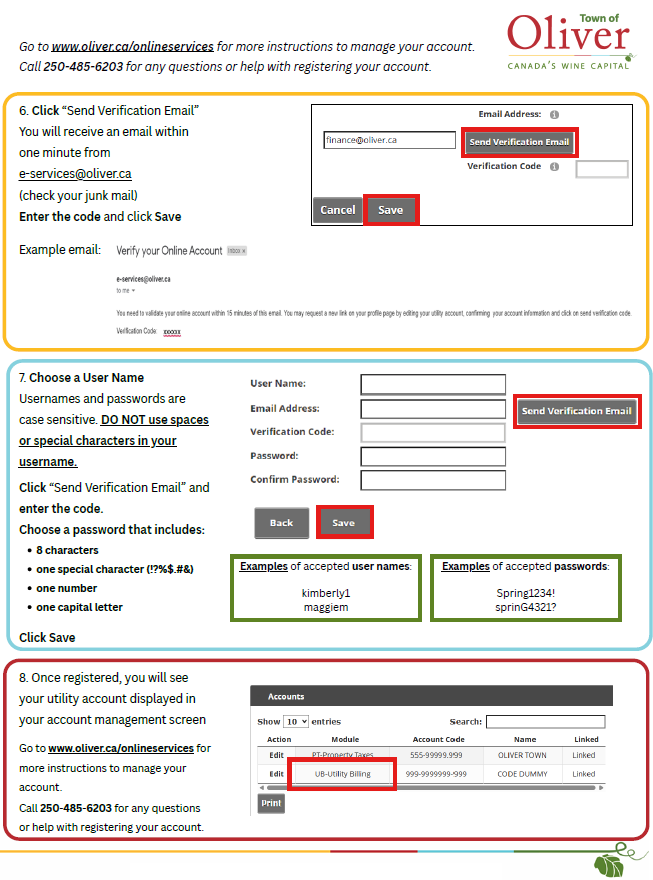
How to register your property tax account
Image
Image
Locate your access code on your property tax notice, or contact the Finance Department at 250-485-6203.
Image
How to register your utility billing account
Image
Image
Locate your access code on your utility invoice, or contact the Finance Department at 250-485-6203.
Image
Locate your access code on your property tax notice or utility invoice as seen below, or contact the Finance Department at 250-485-6203.
Image
Additional instructions for managing your Online Services account
Click here for instructions on how to change your password
1. Click Online Services on the top right of the Town of Oliver's website.
Image
2. Click "Login" on the top right toolbar
Image
3. Click “Reset Password” in the new window that pops up
Image
4. Enter your username and click “Send Reset Link”.
Note: If you do not remember your User Name, please call the Finance Department at 250-485-6203 or email Finance@Oliver.ca
Image
5. When you receive the email (from e-services@oliver.ca), click the link to reset your password
Image
6. Enter your new password in the New Password and Confirm Password boxes, then click “Change Password” Note: Passwords must contain a minimum of 8 characters, including at least one uppercase letter, one number, and one special character (?!@#$%&). Do not use spaces in your password.
Image
Click here for instructions on how to edit your email preferences
Change email address
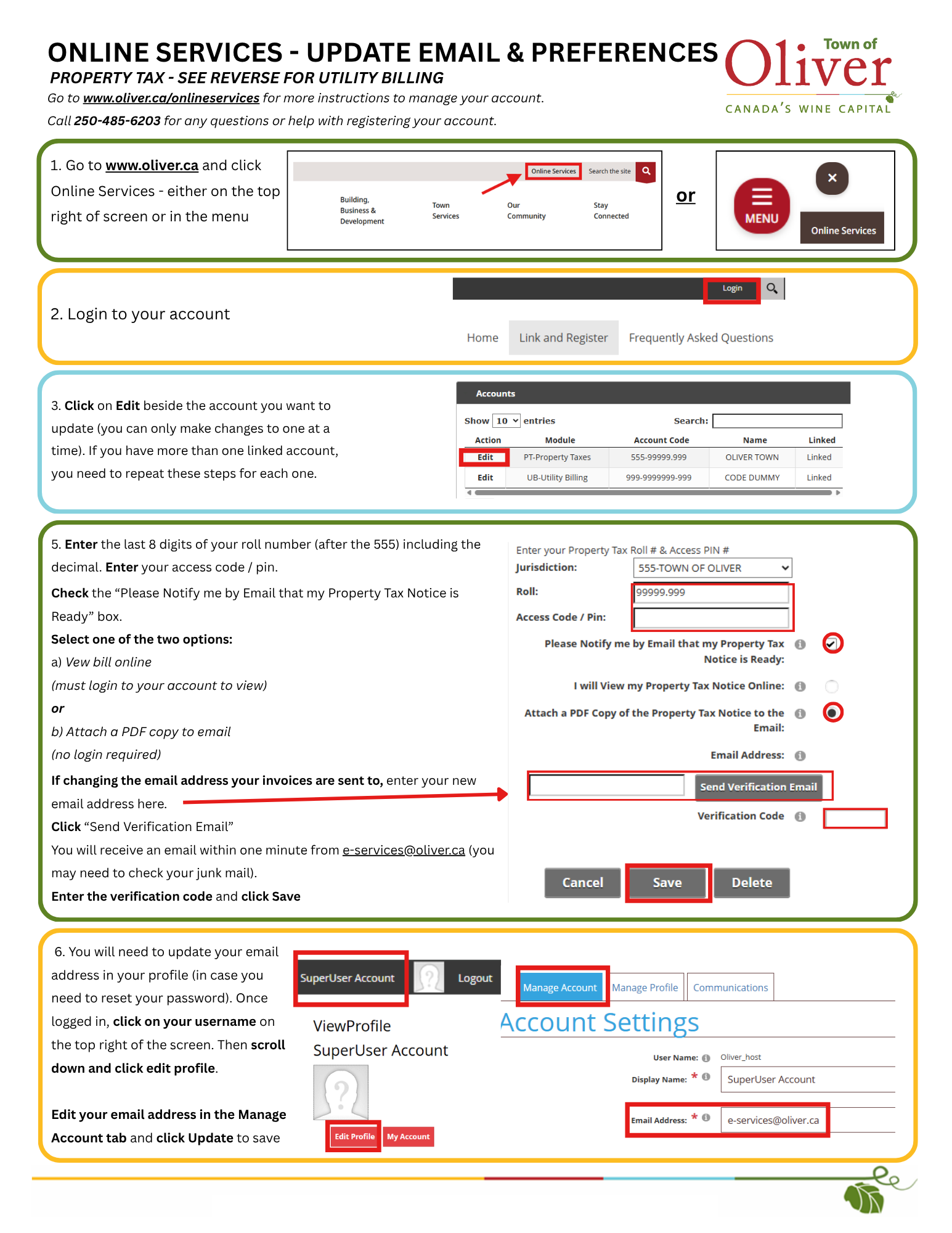
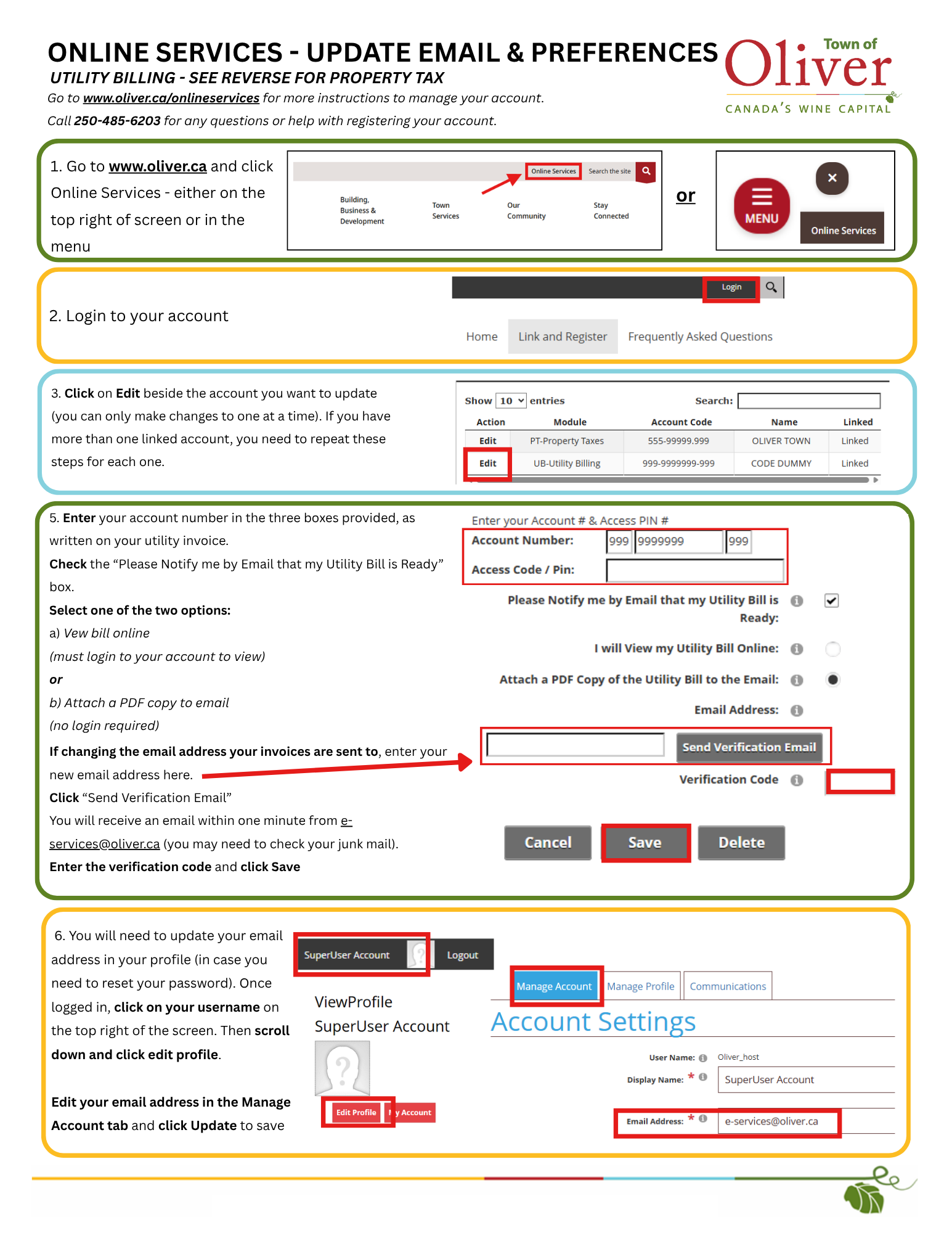
To edit the existing account, sign in to online services then follow the steps below:
- Click on your profile at the top right
- Click “manage account”
- Edit the email address
- Click “update”
Image
Change how the bills are sent to you
Just sign in and go to your profile (top right):
Image
then click on edit beside your property tax or utility billing account (whatever one you want to change):
Image
Scroll down, then you can choose the PDF option below, but you will have to go through the verification process again (enter email, click send verification email, retrieve code from email and enter in the “verification code” box):
Image
Once you have completed the verification process, click save.